In one sentence
A non-conformance record (NCR) walks every issue from intake through investigation to closure — with the timeline, root cause work, and evidence captured in a way that auditors can follow back through later.
- An NCR is structured by tab — Overview, Details, Timeline, Root Cause Analysis, Actions, Attachments, Links, Access, History. Each tab has a single job; you don't have to hold the whole thing in your head.
- There are no stages to advance. Containment and root-cause work are editable at any time on an open NCR; the completion checkmarks come from real content, not from clicking a "next stage" button.
- The NCR can't close without its mandatory evidence. That's by design — the gate keeps records audit-ready.
How an NCR moves through QFormance
Most NCRs touch every step. Some — small observations — skip RCA and close on evidence alone.
Raising an NCR
Click New NCR from the list page. The form asks for:
- Title and description
- Source — Internal Audit, Customer Complaint, Process Inspection, etc.
- Severity — Critical, Major, Minor, or Observation
- Detection date
- Investigation lead
- Facility and department scope
- Containment Action (optional) — a textarea for the immediate step you already took to stop the problem spreading. Fill it here if containment happened before you finished raising the record; you can also add or edit it later from the Details tab.
If AI is enabled and the NCR drafting feature is on, a Sparkles / AI Draft button appears at the top.
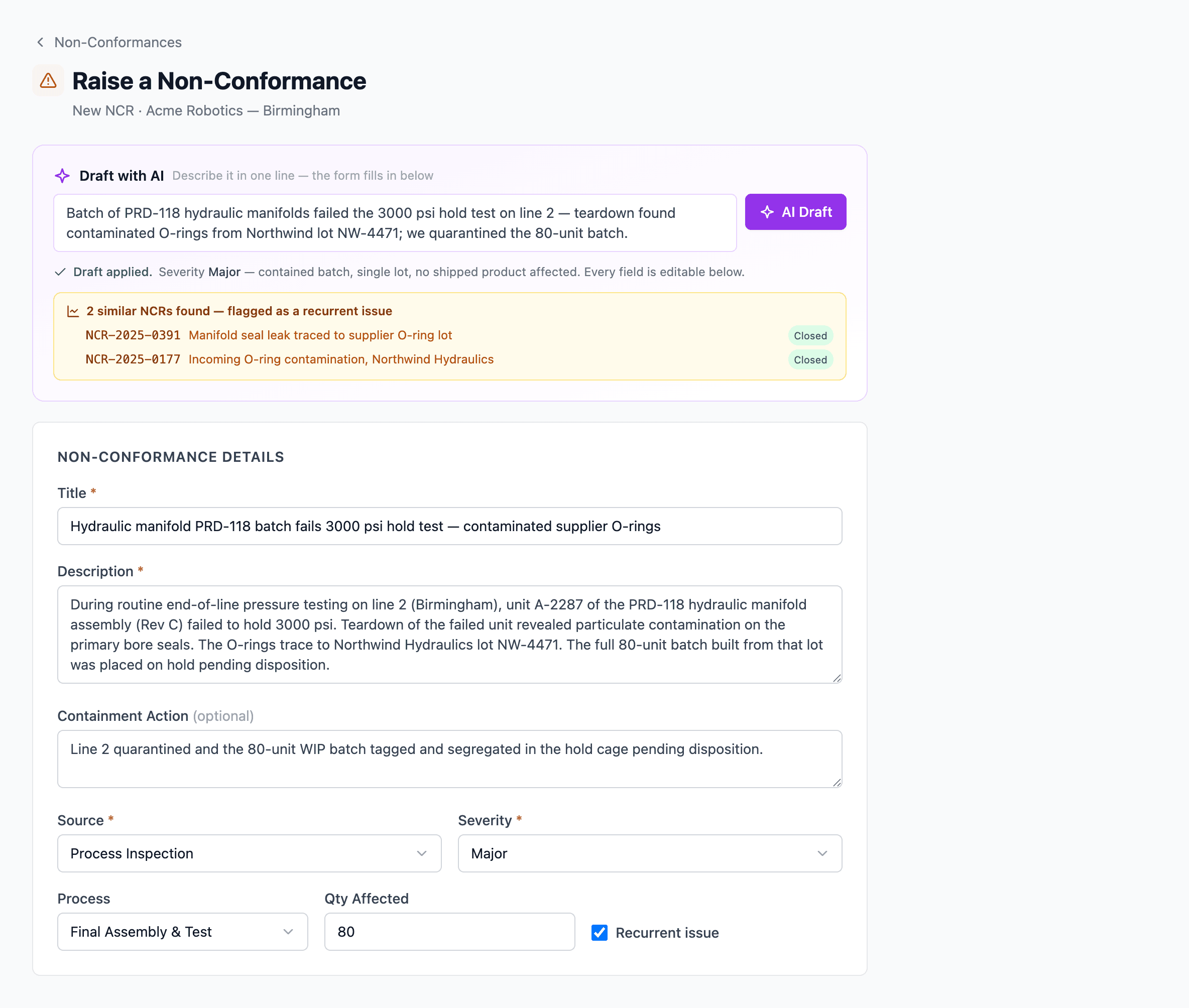
AI Draft. Type a one-line description, click the button, the form fills in.
You stay in the chair. Every field the AI fills is editable. It's a draft, not a submission.
From a short description, the draft fills in the title, a fuller description, the source, the severity (with a one-line rationale for the severity it chose), the affected process, and the quantity affected. Two behaviors keep it honest:
- Containment is only drafted from what you describe. If your sentence mentions a step you already took to contain the issue, the AI writes that into the Containment Action; if you didn't mention any containment, it leaves the field blank rather than inventing one.
- Links are only proposed when you name them. If you explicitly name a supplier, a client, or affected products, the AI matches them against your organization's real records and proposes the links — it never guesses a vendor or part you didn't mention. Every proposed link is shown for you to confirm or drop before you save.
The draft also runs the similarity check below, so an issue that's happened before is flagged before you even submit.
If AI is off at the org or feature level, the button just doesn't appear — the form works the same way without it.
Similar NCRs — recurring-issue detection
QFormance looks for past NCRs that resemble the one in front of you and surfaces them in two places. Behind both is the same hybrid search: a semantic embedding of the NCR's text is matched against the org's other NCRs, and a keyword (full-text) search runs in parallel; the two rankings are fused so the strongest matches rise to the top whether the wording is identical or just conceptually close. If embeddings can't run (AI off, provider down), the panel falls back to keyword-only ranking automatically.
On the AI Draft
When you use the AI Draft button, the draft also runs a similarity check. If close prior NCRs are found, the Recurrent issue flag is checked for you and the matches are listed in an amber notice above the form, each linking out to the past NCR. You can uncheck the flag if it doesn't apply — the notice is a heads-up, not a constraint.
On the NCR detail page
The Links area on every NCR's detail page carries a Similar NCRs panel showing up to five closest matches from the same organization. Each row shows the NCR number, title, and current status with one-click navigation. The panel only renders when there are matches — empty results hide it. It updates as the NCR's description, root cause, and other text fields evolve.
This pattern isn't NCR-specific — the same engine powers Similar Meetings, Similar Audit Findings, Similar Risks, and Similar Exemptions on those modules' detail pages. Each module has its own per-feature AI toggle (under Admin → AI Settings), so an org can opt into similarity on the modules that matter to them and leave others off.
The tabs at a glance
| Tab | What lives here |
|---|---|
| Overview | Summary of every section, total losses, access status |
| Details | Core details, severity, losses — and the Containment section at the bottom |
| Timeline | The ECFC — a structured event log of what happened |
| Root Cause Analysis | 5-Why, Fishbone, or Fault Tree, plus the Root Cause Actions panel |
| Actions | Corrective, containment, preventive |
| Attachments | Mandatory closure evidence (top) and additional files (below), in one place |
| Links | Connections to documents, audits, meetings, risks, and products |
| Access | Per-record access control (if you have the capability) |
| History | The unified record-history feed — see Record history |
There's no separate Containment tab and no separate Evidence tab any more: containment is a section at the foot of the Details tab, and evidence and general files share one Attachments tab — the mandatory closure-evidence slots sit at the top, everything else below.
Timeline (ECFC)
The Timeline is where the investigation lives. It's not free text — it's a dual-lane log that distinguishes between what happened and the conditions around it.
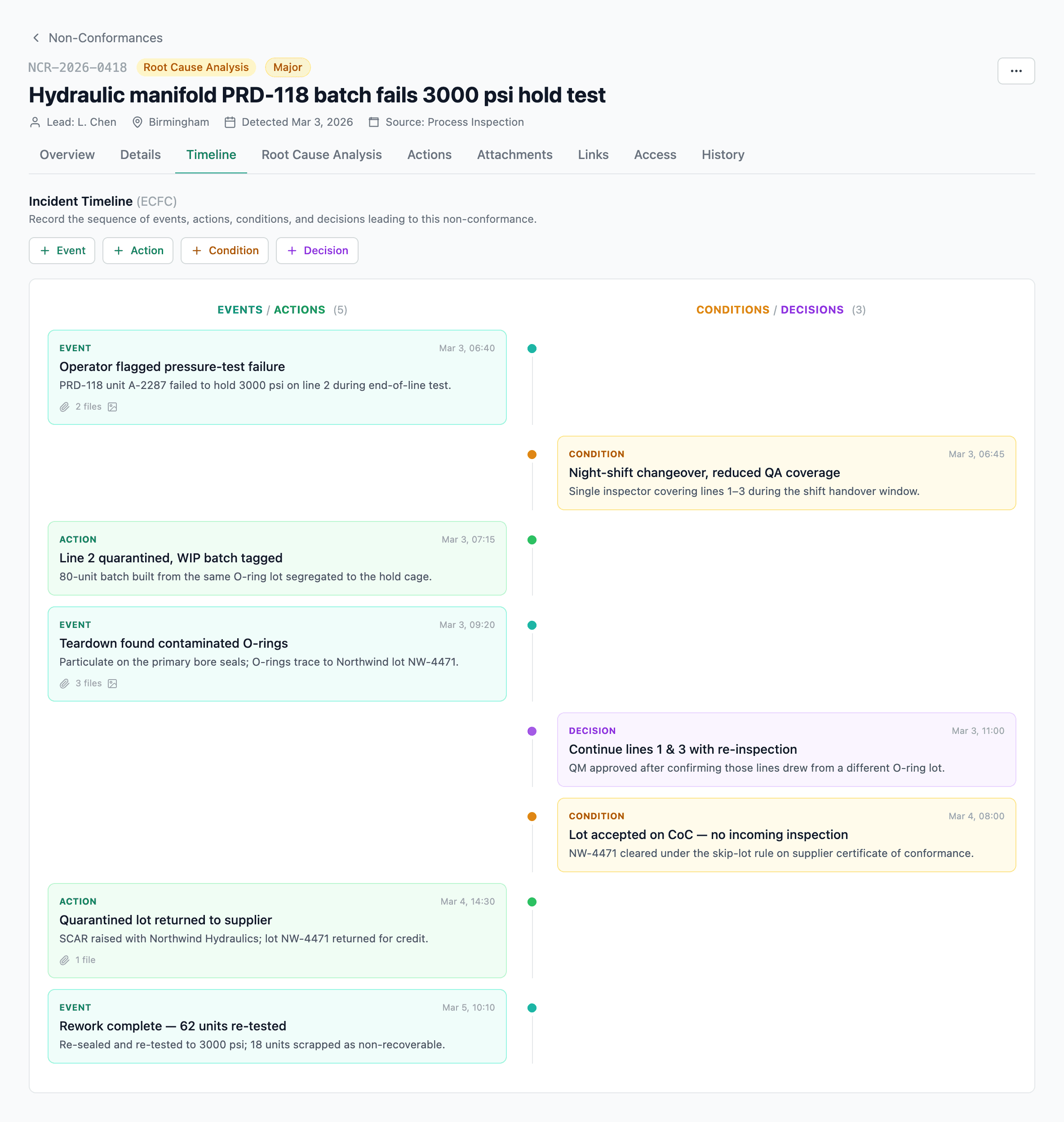
- Left lane — Events (blue) and Actions (green): what happened and what was done.
- Right lane — Conditions (amber) and Decisions (purple): circumstances at the time and choices that were made.
Each entry has a timestamp, description, and can carry photos or files. Files uploaded to the timeline also appear in the Attachments tab automatically — you don't double-upload.
Containment
Containment — the immediate step to stop an issue spreading — lives in a section at the bottom of the Details tab (and can be seeded on the create form or by the AI draft, as above). Because NCRs have no stages to march through, that section is editable at any point while the NCR is open; it doesn't lock until closure. It saves with the rest of the tab — the Details tab's single Save Changes button persists the core fields and the containment action together, in one submit. The Overview shows a containment completion checkmark once the section actually has content, not merely because you opened the tab.
Losses
The Details tab has a Losses section. Each row captures one cost line:
- Category — Labor, Materials, Penalties, or anything else you've configured.
- Amount and Currency — multi-currency, one currency per row.
- Notes — optional context.
Overview totals losses by category, so you see the financial impact alongside the investigation. Useful for the inevitable management review question: "what did this NCR actually cost?"
Root cause analysis
Pick the method that fits the failure mode. Each has its own structured editor — none of them are free text.
- 5-Why — iterative why? drilldown. Best for human-error and process-gap failures.
- Fishbone (Ishikawa) — causal categories radiating from the effect. Best for multi-factor failures.
- Fault Tree — boolean-logic tree of contributing failures. Best for technical / safety-critical investigations.
You only need one. Switching mid-investigation is allowed, but if the current method already holds work, QFormance warns you before it clears the analysis — so you don't wipe a filled-in fishbone by fat-fingering the method dropdown. A method only counts as completed when it holds real content; picking a method and leaving the skeleton empty doesn't tick the checkmark.
Root Cause Actions
Below the analysis, the Root Cause Actions panel lets you mark which of the NCR's existing actions are the ones directly addressing the root cause — the corrective actions that close the loop between "here's why it happened" and "here's what we changed." It's a linking view: you tie existing actions to the root cause here, but you still create, assign, and close the actions themselves on the Actions tab.
Capturing residual risk
When the RCA reveals an exposure that's bigger than this single NCR — a recurring failure mode, a missing control, an industry-wide concern — push it to the Risk Register without leaving the page. The AI doesn't just draft a title; it proposes a scored, controlled risk you can review before it's created.
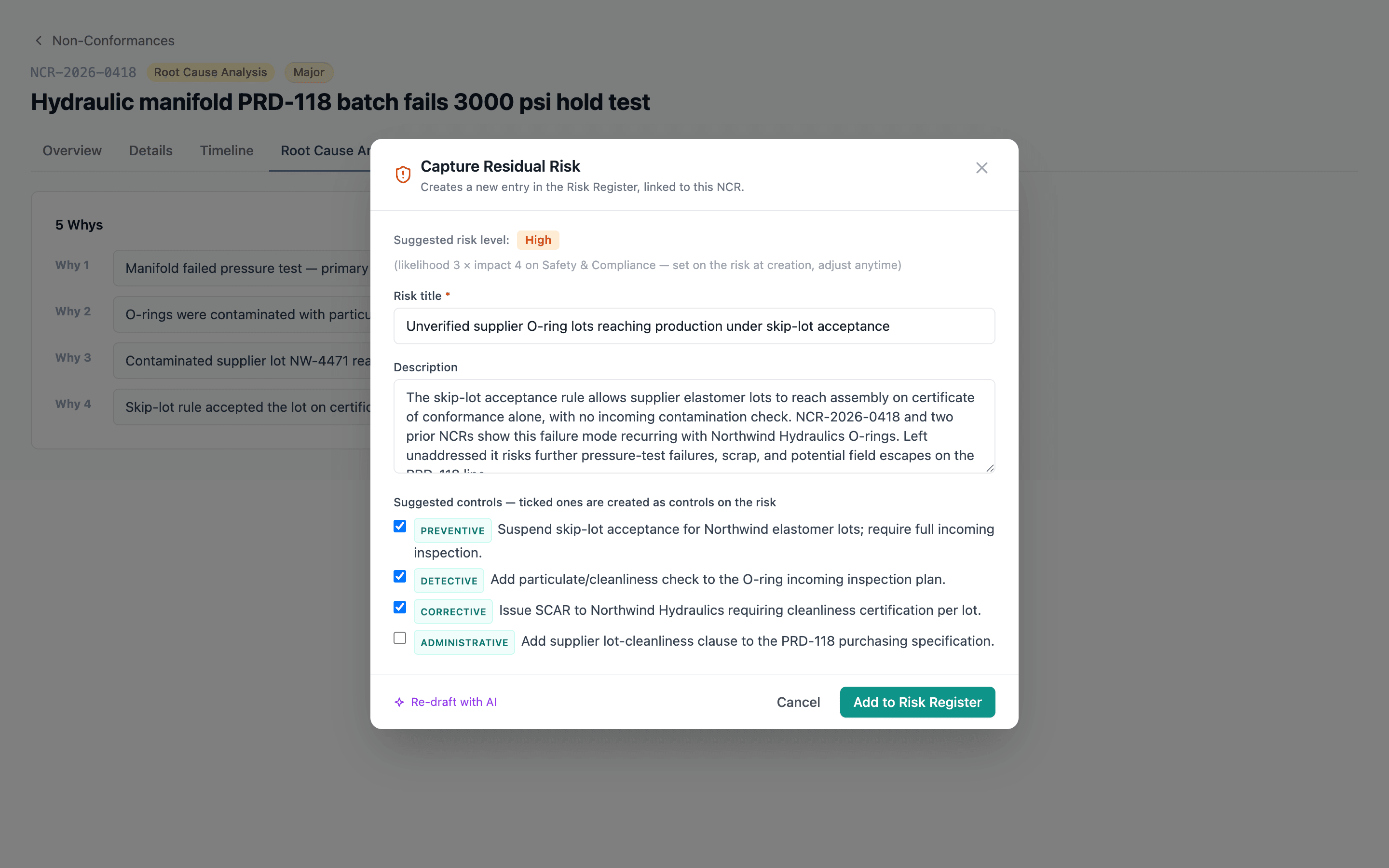
AI-drafted title and description based on the root cause, corrective actions, and losses.
Suggested controls, each with a type — preventive, detective, corrective, mitigating, or administrative. Tick the ones you want; the ticked ones are created as real controls on the new risk.
Suggested likelihood × impact, seeded on the risk dimension the AI judged most relevant from your org's own matrix.
What gets carried onto the new risk when you confirm:
- The controls you ticked become real, typed control records on the risk — not just prose.
- An initial likelihood × impact score, on the org risk dimension the AI picked (all reviewable and adjustable, before creation and after).
- The NCR's products are copied onto the risk, so the exposure inherits the same part scope.
- A link back to this NCR, created automatically, so the risk and the non-conformance that spawned it stay traceable both ways.
The new risk is a first-class register entry. It can be imported into MOCs, Exemptions, or JHAs from those modules' "Import from Register" flow.
The Capture Residual Risk button is disabled until root cause text exists, and hidden once the NCR is closed.
Actions
NCR actions roll up into the global Actions page — they're not buried inside the NCR. Each action has:
- Type: Corrective, Containment, or Preventive
- Assignee and due date
- Status: Open → In Progress → Completed → (optionally) Verified
- Closure notes — required before marking complete
- Verification evidence — files, URLs, or document references
- Optional link to the meeting where it was closed out
Which of these actions actually resolve the root cause is recorded separately, on the Root Cause Actions panel of the Root Cause Analysis tab.
Attachments
Evidence and general files share a single Attachments tab, in two bands:
- Mandatory closure evidence (top) — the slots the NCR cannot close without. Each slot is satisfied by a file, a URL, or by marking it not available with a reason.
- Additional files (below) — supporting artifacts that strengthen the record but aren't gate items, plus any general attachments not tied to a specific requirement.
Every upload tracks who and when. Files dropped on the Timeline or on Actions also show up here, so the Attachments tab is the single inventory of the NCR's paper trail.
The system blocks closure when mandatory evidence is missing. The Close NCR button stays disabled and its tooltip names exactly what's outstanding — with a one-click hint that jumps you straight to the Attachments tab, so you don't go hunting.
Closing an NCR
Closing requires the Close NCR permission. The Close NCR button is disabled until every mandatory evidence requirement is satisfied — each one needs a file, a link, or a not available mark with a reason. Until then the button's tooltip lists precisely what's missing, and the closure hint jumps you to the Attachments tab to fix it.
If your organization has Require passkey for approvals turned on, closing an NCR prompts for a fresh passkey confirmation. The confirmation lasts 5 minutes. The user closing must have at least one passkey enrolled — see Auth policy and Passkeys.
Once closed:
- All tabs become read-only.
- The Activity log preserves the complete history.
- The record stays searchable in the audit trail forever.
Reopening a closed NCR
If new evidence emerges that contradicts the closure, a Quality Manager or Admin can reopen the NCR. Reopening returns it to Verification and requires a reason (recorded in Activity). When the org requires passkeys for approvals, reopening also prompts for a fresh passkey confirmation. From Verification the NCR is fully editable again and can be re-closed through the same evidence gate.
If you delete an NCR
An NCR can be deleted while it's still open — any status short of Closed. It lands in Trash for 90 days, where an admin with the Manage trash permission can restore it; restoring brings the timeline, root-cause work, actions, evidence, losses, and cross-module links back together. Deleting takes the Delete NCRs permission — admin by default, and grantable to any custom role or individual user.
A closed NCR is a permanent record — the delete button is blocked on it. It's been signed off and evidenced, so removing it would break the audit trail an inspector relies on. If a closed NCR genuinely must be removed, a Quality Manager or Admin reopens it first (itself logged), then deletes it from the reopened state.
See Soft-delete — how it works.
Finding NCRs in the list
The NCR list page has a filter for every column right in the table header — narrow by source, severity, status, scope, and so on, all at once. A count of matching NCRs sits in a footer strip below the table, so you always know how big the set you're looking at is.