In one sentence
A product's critical-to-quality characteristics are the features that have to be right — a bore diameter, a weld penetration, a surface finish — each recorded as its own row on the product's Critical to Quality tab, so another record can point at that one characteristic instead of repeating it as free text.
- One characteristic per row, one required field. Only Characteristic is required. Specification, Method, and Classification are there when you want them — a quick pass from a drawing can be four words per line.
- Characteristics belong to a revision, not to a part number. Creating a new revision copies them forward as fresh copies. Edit Rev C's specification and Rev B keeps the spec it was built to.
- An FMEA row can name the characteristic it analyses — optionally. A failure mode is how a characteristic fails, so linking the two makes "bore diameter oversize" point at Bore diameter. Plenty of rows are about a process step instead, and those stay unlinked.
Where it lives
Open a product and choose the Critical to Quality tab. It sits after Components, carries a count of the characteristics on this revision, and stays visible when the list is empty — it's the surface where the first one gets added, the same rule Components and Documents follow.
The tab lists the characteristics in the order they were added, newest at the bottom.
The four fields
Click Add characteristic to open the inline form.
| Field | Required | What goes in it |
|---|---|---|
| Characteristic | Yes | The feature itself — Bore diameter, Weld penetration, Surface finish. Short and nameable; this is the label other records will show. |
| Specification | No | What it has to be. Free text — 12.00 ± 0.05 mm, a GD&T callout, min 3.2 mm, no visible porosity. |
| Method | No | How it's verified — CMM, go/no-go gauge, visual. |
| Classification | No | Critical, Major, Minor, or left as Not classified. |
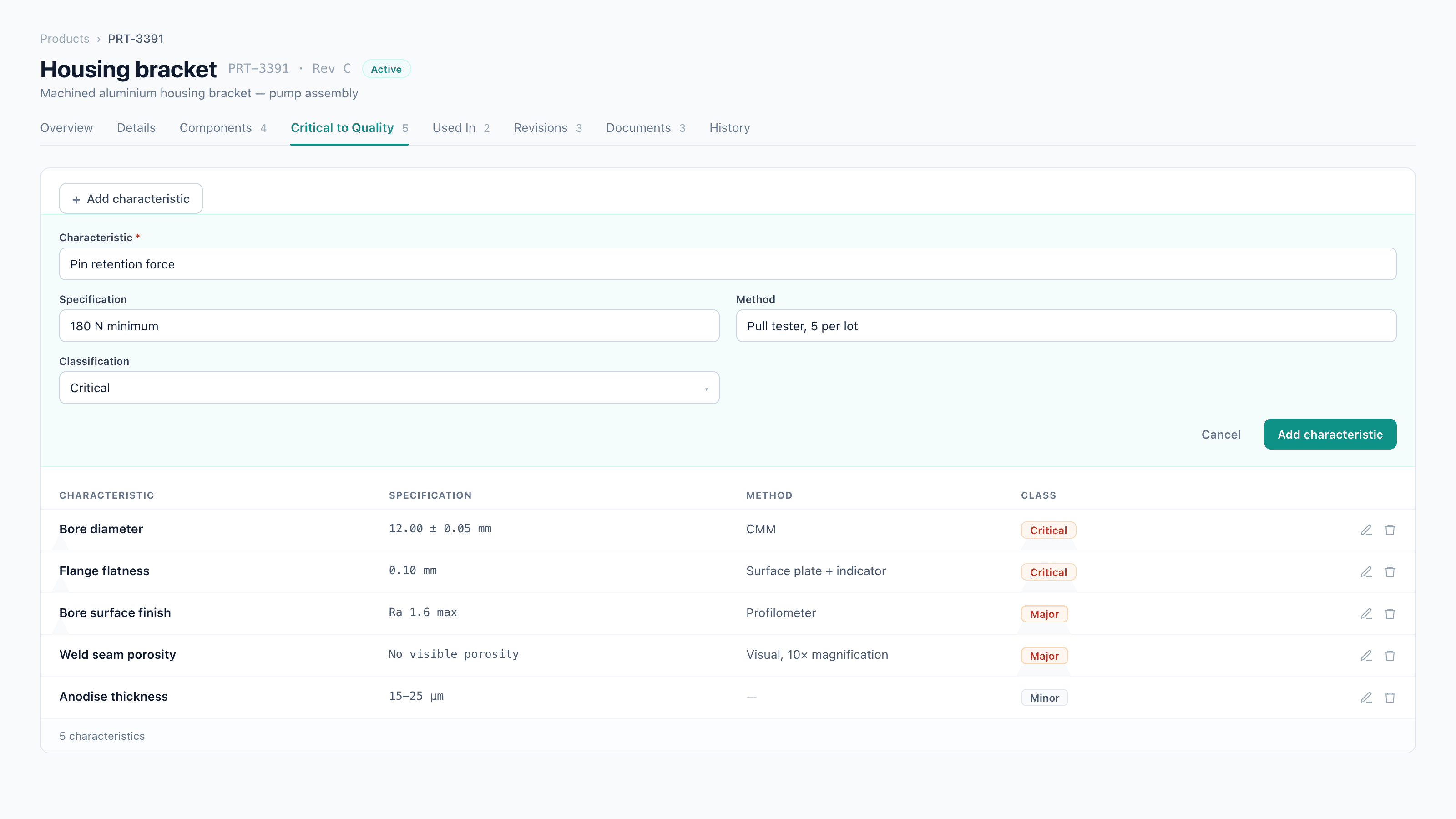
Leaving an optional field blank records it as not specified — the row shows a dash rather than an empty-looking value.
Editing works the same way: the pencil on a row reopens the form in place. The bin removes the row, with an inline Remove / Cancel confirmation first.
Modelling a tolerance as nominal / upper / lower looks tidier and then meets a real drawing. A GD&T callout, a min-only limit, a surface-finish symbol, and an attribute criterion like no visible porosity are not three numbers. So QFormance structures the parts that are reliably categorical — the characteristic itself and its classification — and records the tolerance the way the engineer wrote it. If you want to standardise the phrasing across a family of parts, that's a house convention rather than something the field enforces.
Classification
Classification drives how much attention a characteristic deserves — sampling frequency, inspection severity, where an approver looks first. Three values are available, each shown as a colored badge on the row:
| Value | Reads as |
|---|---|
| Critical | The one you stop the line for |
| Major | Significant, but not safety- or function-critical |
| Minor | Recorded and checked, low consequence |
Not classified is a real answer, and it's the default. A field where everything defaults to Major is a field that means nothing — leave it unset until someone has actually decided.
Removing a characteristic
Removing takes the row off this revision. Two things survive it:
- Earlier revisions keep their own copies. Because a new revision clones characteristics rather than sharing them, removing one from Rev C leaves Rev B untouched.
- The removal is in the audit trail. Every add, edit, and removal is captured by a database trigger with the actor and the before/after values, the same mechanism behind Record history.
▸
Characteristic changes are written to the record_changes audit trail by trigger, so they're part of the Part 11 record and retrievable for an inspection. They're captured against the characteristic itself rather than against the product, so they don't appear as entries in the product's History tab feed — that tab shows changes to the product record and its own fields.
Revisions copy characteristics forward
When you create a new revision of a product, its characteristics come with it — copied onto the new revision alongside the bill of materials, with the same characteristic, specification, method, and classification.
They're cloned, not shared, and that distinction is deliberate. A BOM component is a product in its own right and legitimately belongs to several assemblies. A characteristic describes one revision — its specification is the record of what that revision was built to — so the retired revision has to keep its own copy. Rev C inherits Rev B's list and you edit what actually changed; Rev B still reads the way it read when parts were built to it.
See Products → Revisions for the rest of what a new revision carries forward.
Seeing coverage from the register
The Products list has a CTQs column showing how many characteristics each product has, and a dash where it has none. It answers the question the detail page can't without opening every part in turn: which parts have their characteristics defined at all?
Naming a characteristic on an FMEA row
An FMEA row says "this failure mode, on this function, with this effect". A characteristic says "this feature must be this". The failure mode is how the characteristic fails — so the FMEA row editor offers a Characteristic picker at the top, above the process step.
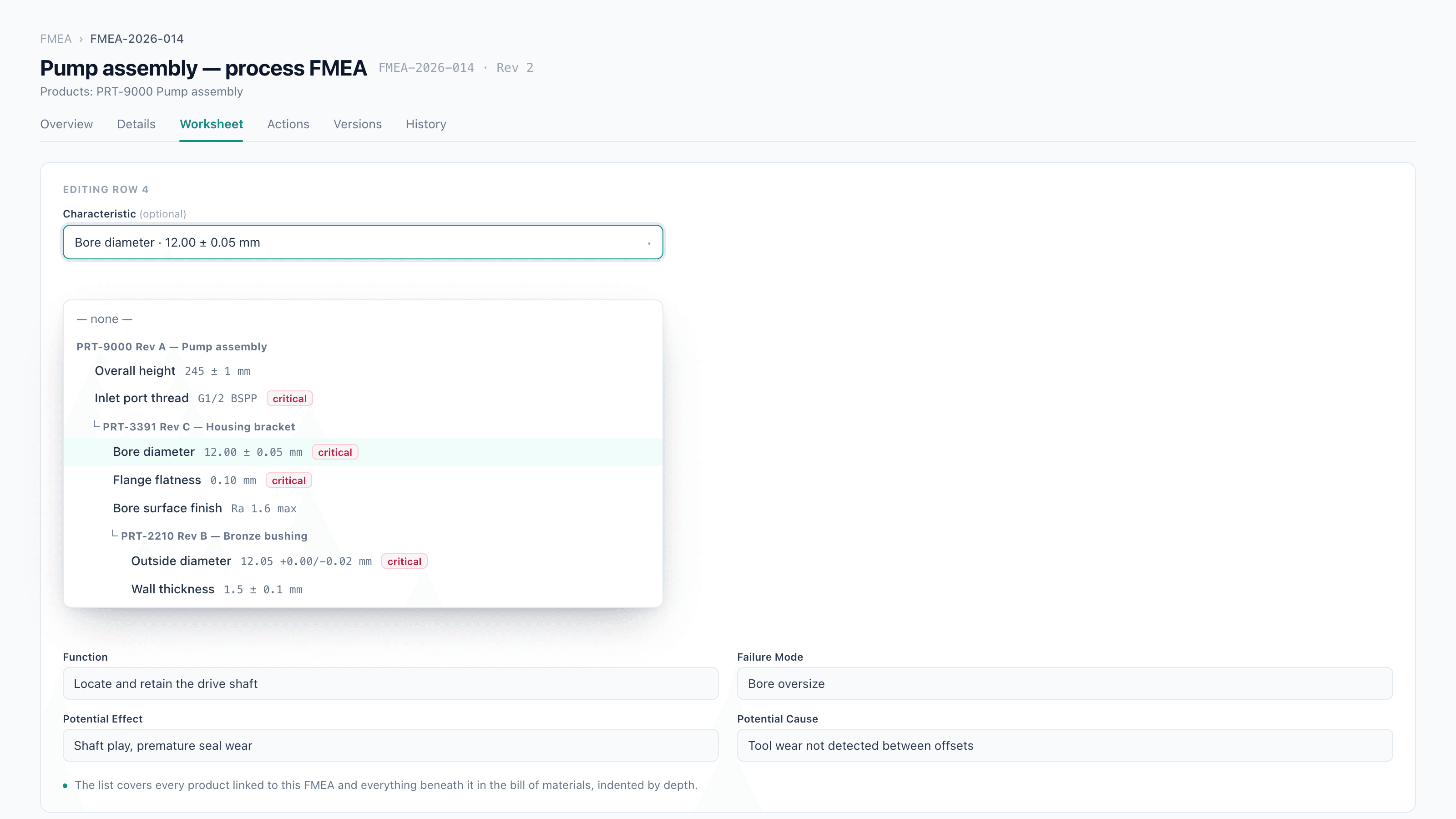
- It's optional, and blank is fine. Many rows are about a process step ("operator loads fixture") rather than a part feature, and an FMEA is often written before anyone entered the characteristics. Choose — none — and the row behaves exactly as it always has.
- The picker only appears when there's something to pick. If the FMEA's linked products define no characteristics, the field is hidden rather than shown empty.
- It reaches down the bill of materials. Options come from the products linked to the FMEA on its Links tab and everything below them in the BOM, at full depth. That's the point rather than a nicety: an FMEA is usually written against an assembly while the features that fail live on its children — a bracket's bore, a casting's porosity.
- Options are grouped by product and indented by BOM depth, each group headed by the product number, revision, and name, so you can see whether you're picking the assembly's own feature or a child part's. Each option shows the characteristic, its specification, and its classification.
- A shared component appears once, under the first assembly that reaches it — so the same characteristic can't be picked from two places in one list. Products with no characteristics are left out of the picker entirely.
Set the link in the row editor; it's saved with the row like any other field and shown again when you reopen the editor.
▸
The link is an annotation on the analysis, not a dependency of it. Removing a characteristic from a product never deletes the FMEA row that referenced it — the analysis stays and simply stops naming a characteristic. The FMEA items table doesn't render the characteristic as its own column yet; the link is set and read in the row editor.
Permissions
Viewing characteristics needs nothing beyond access to the product. Adding, editing, and removing them requires the Edit products permission — the same permission that governs the rest of the catalog, rather than a separate one to grant. Without it the tab is read-only: the list renders, the add button and the row controls don't.
See Products → Permissions and Roles & permissions.
Related
- Products — the catalog, revisions, and the bill of materials
- FMEA — failure modes, RPN scoring, and versioned approvals
- Record history — how the audit trail captures field-level changes
- Roles & permissions